



Estimating
Public Group
Public Group
Active 3 weeks ago
Estimating could include material take-offs for simple quantities or complex pricing. Whether you... View more
Public Group
Organizer:
- Organized by
-
-
Manually Typed Value for Count Tool
Tagged: Count, custom tools, multiply
-
Manually Typed Value for Count Tool
Posted by Darren Chambers on May 14, 2026 at 3:22 pmI need a tool that I can manually type the count value. I am literally counting corner trim with my finger and need a way to record it on the drawing for reference later and most importantly, so that it can be part of the markup takeoff export to excel. Ideally having the typed count end up in the Measurements Column would be great but at this point I’ll take any advice I can get. I have spent WAY too much time trying to follow examples that did not work. Most of which involved a custom column, and various markup tools turned into counts or sequences.
Thomas Luedke replied 5 months ago 5 Members · 11 Replies -
11 Replies
-
 Points: 34,765Rank: UC2 Brainery Advanced Brown Belt IIII
Interesting question @dchambers – had to think about this for a minute.
Something that might work for you is to use the “multiply” tool.
Sequence would work like this:
1. Apply a count markup
2. Select the markup, right click and choose “Multiply” from the popup menu
3. Enter the number of copies of the markup that you need
– note that if you need a total of 10 you multiply the original item 9 times
4. Enter an offset distance
– note that the offset cannot be “0”. I used 0.10 in this example to keep them close
I think that should give you what you are looking for.
Bonus steps
5. Select all 11 copies of the markup, right click and select “Merge Counts” – this cleans up your markup list so you only see one entry.
Final note – you may need to turn on the “Measurement” column in your Markups List and ensure that you are exporting that column in your CSV.
Hope this helps! 😎
Dave
-
Points: 278Rank: UC2 Brainery Newbie

Sorry about replying to you @DavidCutler under Troy’s question. This is my first time posting. Thanks again for the work around.
-
Points: 34,765Rank: UC2 Brainery Advanced Brown Belt IIII
No worries @dchambers ! I appreciate that you took the time to respond. 😎
-
-
-
 Points: 30,395Rank: UC2 Brainery Advanced Brown Belt II
@dchambers I’m not sure I understand your question. Do you have a drawing or some sort of example?
-
Points: 278Rank: UC2 Brainery Newbie
I have a floor plan that shows an outside corner. As a generality lets say that gets 2 trim pieces per floor. With a split screen open to the elevation, I see there are 3 floors. I need to put a Count item on the elevation and I want to be able to type “6” as the count. I need that to go into the measurements field on the markup list if possible. That way when I export and sum the data, I’ll have the count totals and can go back and change the markup count value if they change the elevation. eg. they add a floor of brick so I need to reduce my corner trim count.

-
 Points: 19,166Rank: UC2 Brainery Advanced Blue Belt IIII
I do something similar.
What I have is a custom column called “Floor Multiplier”; Just set your default to 1.
Then you can simply do the math.
-
-
-
Points: 278Rank: UC2 Brainery Newbie
That worked great. I just have to make sure to select the original item when merging them back in. The biggest advantage for this method is that it gets the count value into the Measurements column for exporting. Even if I forget the Merge step, the pivot table of export data still sums it up for me. Thank You!
-
Points: 34,765Rank: UC2 Brainery Advanced Brown Belt IIII
Glad to be of assistance @dchambers !
Out of curiosity, seeing your response to @troy-degroot , is there a reason why you wouldn’t simply apply 6 markups where you see them being needed in the elevation view? This is what I do with pipe fittings. That way our project manager can not only see the count, but also where I saw the pieces being used. If you are concerned with the drawings being cluttered you could reduce the marker size and hide the caption so that the markups are more subtle. If you later want to see where they all are you can increase the size – even if it is only temporary.
Keep the questions coming. The members of the Brainery enjoy a good challenge. 😎
Dave
-
-
Points: 233Rank: UC2 Brainery Newbie
My super hacky conditional column setup described in this Bluebeam community thread allows for what you’re wanting. Long story short, it exploits a weird math equality to allow for me to create a select column called “cost type” which determines how the cost is calculated in the total column. I have options for the following:
– “Cost x M” takes the unit cost and multiplies it by the measurement column (the more boilerplate takeoff standard that most people are familiar with)
– “Cost x M x D” multiplies the cost by the measurement and the depth. This turns any area markup into a volume markup, i.e. pricing sq ft of a tile floor vs pricing cubic feet of a concrete slab in a plan markup. My more common use is that it turns a polylength or perimeter markup into a “depth area” markup which I used to price millwork finished ends or countertops in elevation.
– “Cost x 1” makes the total cost equal to the unit cost. This is for lump sum items that I get a direct quote on from a subcontractor, making where the cost is irrelevant to the measurement.
It’s a long winded way of saying that I went to all this trouble so I could keep the markup pdf as a “living estimate” for our projects which go through constant changes during the course of construction. It became clear that there was a need to create additional columns to add quantity or markup % to measurements.
– The “cost type” field is just a choice column that outputs 1, 2, or 3.
– The “unit cost” field is a simple currency number field
– The “markup” field is a percentage number field that allows me to multiply line item $ amount for padding purposes or to add an OH&P. It is applied in the last formula to the $ amount to get the total.
– The “qty added” field is a simple number input field that allows me to add a flat amount to any quantity, including count markups. You have to be careful because if you make multiple copies of the same count markup, the qty added will be multiplied. If the markups are chained, then the added amount is only applied once (usually the desired outcome).
– Qty total is where the crazy math stuff happens. You don’t need the Lagrange polynomials if you’re okay with just having one way to cost a given markup. You can simply make it a formula that takes the measurement + the qty added field.
– Price total takes the Qty total * Unit Cost * (100 + Markup) / 100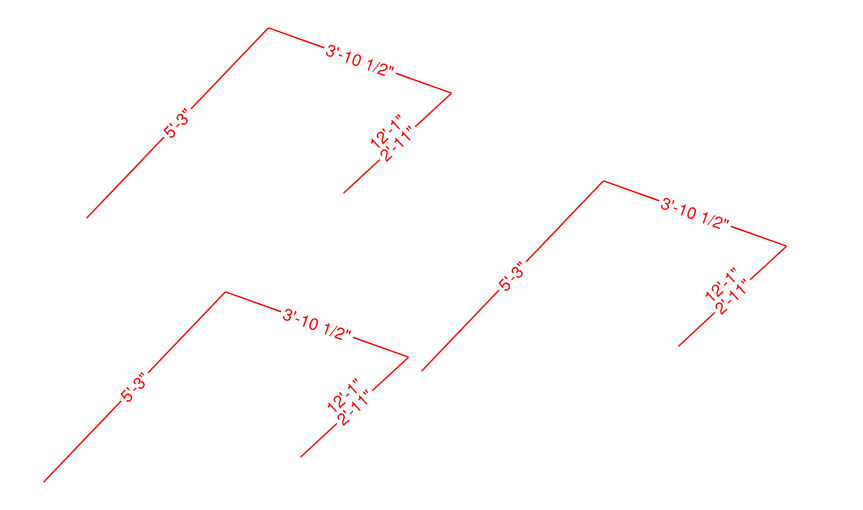
community.bluebeam.com
I found a cool workaround for conditionals in custom columns - Bluebeam Community
Three identical polylength markups: Markups List: I wanted a system that would allow me to choose a pricing based on the measurement itself, the depth area, or a simpler lump sum type value. I highlighted the part of the formula … Continue reading
-
Points: 30,395Rank: UC2 Brainery Advanced Brown Belt II
There are some good ideas here, but also some areas that may confuse others on your team. I read you are the only one in your role, so it works great. When I build tools for customers, I always build them for the intern that hasn’t been hired yet. It should be teachable so they intuitively trip into doing things correctly. If they go out of their way to do it wrong, flags will go up, and we have a teaching opportunity.
What you have works, and sometimes thats all we need. Custom tools and columns are usually evolving the more you learn. Great job digging in and figuring out a way to get what you need.
-
Points: 233Rank: UC2 Brainery Newbie
I think the backend / initial set up of the formula column is definitely confusing. Luckily bluebeam allows for these configurations to persist in saved profiles. The frontend use is very approachable to anyone with estimating experience. All of these concepts should be familiar to them and I’ve had good results onboarding people to this system.
I will say that the markups list is underutilized by many and getting them to understand the mechanics of the markups list itself is the biggest hurdle to get over.
-
-
Log in to reply.