
The Hidden Help Button in Bluebeam Revu, and How to Make It Work for You


The Hidden Help Button in Bluebeam Revu
There’s a button inside Bluebeam Revu that most people never use. Not because it isn’t valuable. Simply because no one showed them how to make it useful.
Today, that changes.
By the time you finish this, you’ll have a dedicated help button built directly into your Bluebeam interface, one that connects you to answers, workflows, and ideas whenever you need them.
Let’s set it up.
Step 1: Set Your Web Tab Home Page
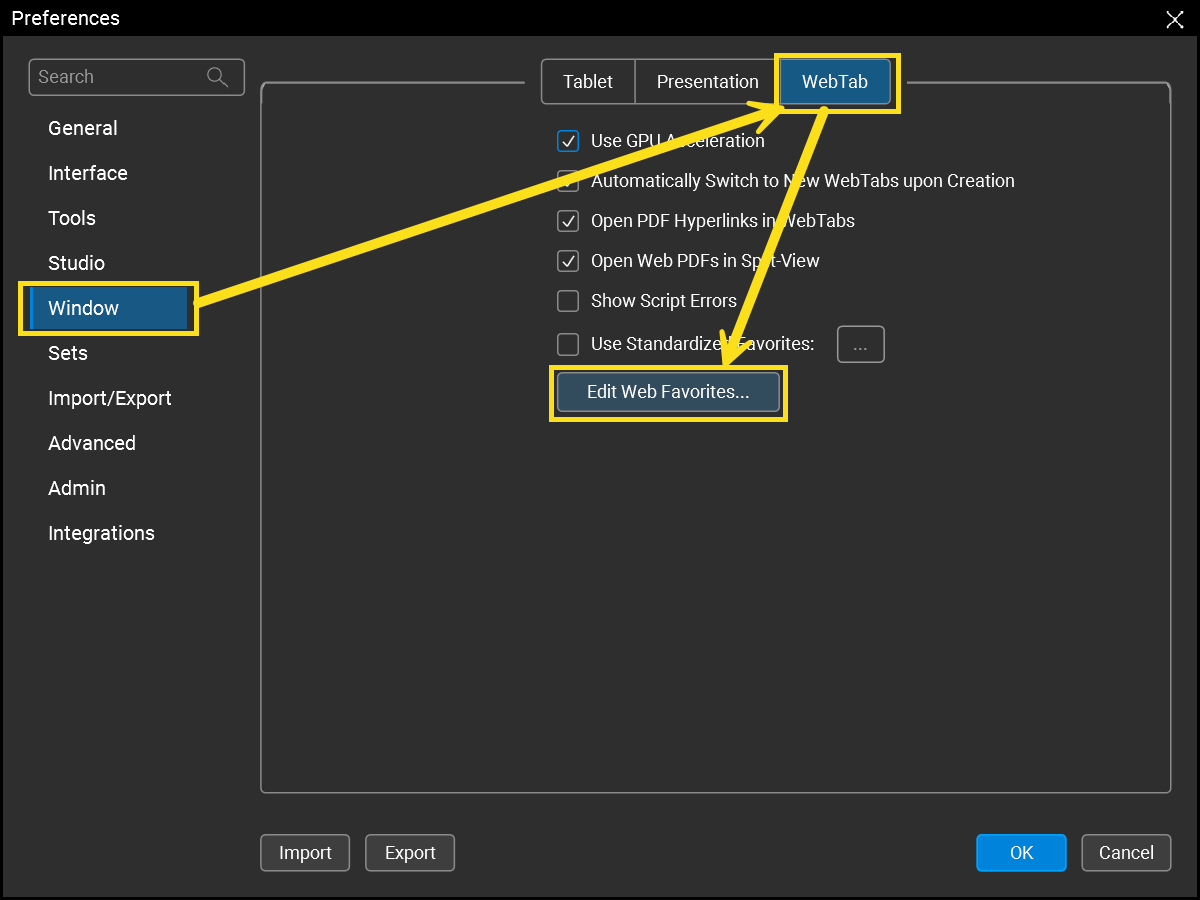
On the menu bar at the top left of the interface, go to:
Revu > Preferences
In the Preferences window:
- Select Window on the left
- Select Web Tab at the top
- Click on the Edit Web Favorites… button.
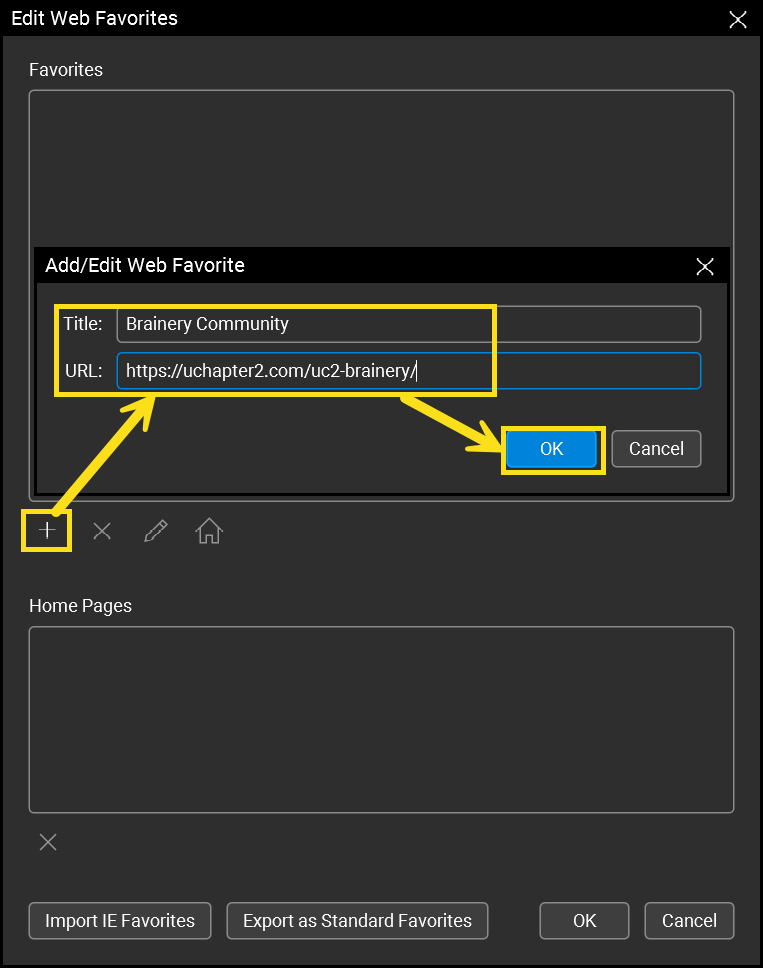
In the resulting window:
- Click the + button in the middle
- Type in the “Brainery Community” in the Title:
- Enter this URL: https://uchapter2.com/uc2-brainery/
- Click OK
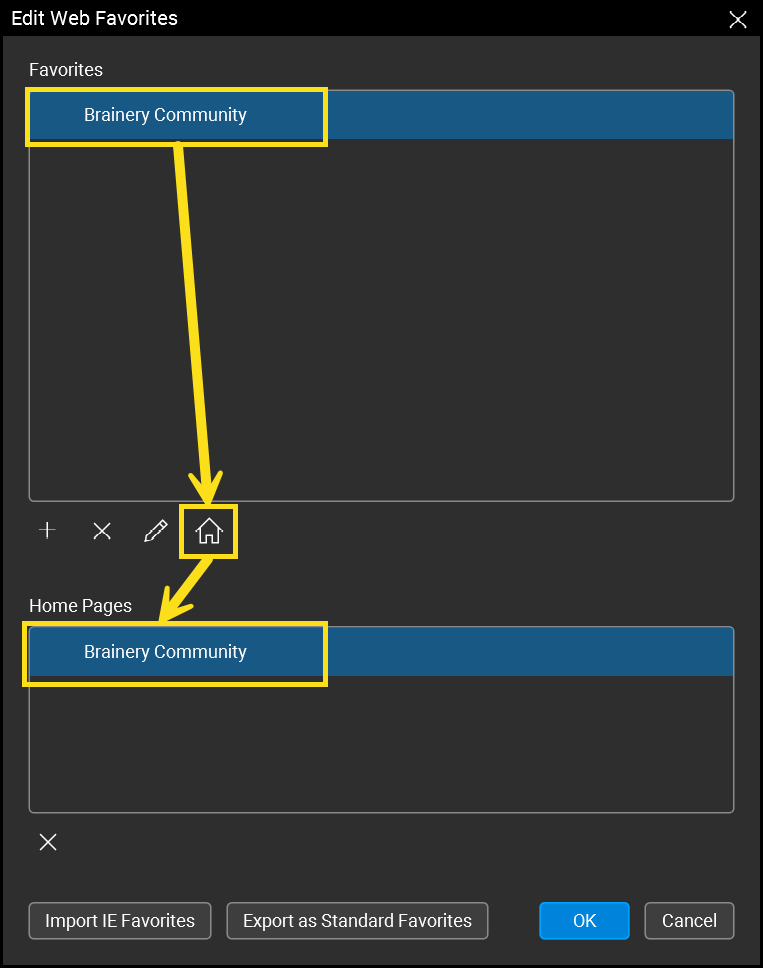
You should now see Brainery Community listed in the top window.
Select it so it highlights blue, then click the House icon in the middle. This moves it to the bottom window and makes it your home page in the bottom window.
Click OK
Then click OK again to close Preferences and save your changes.
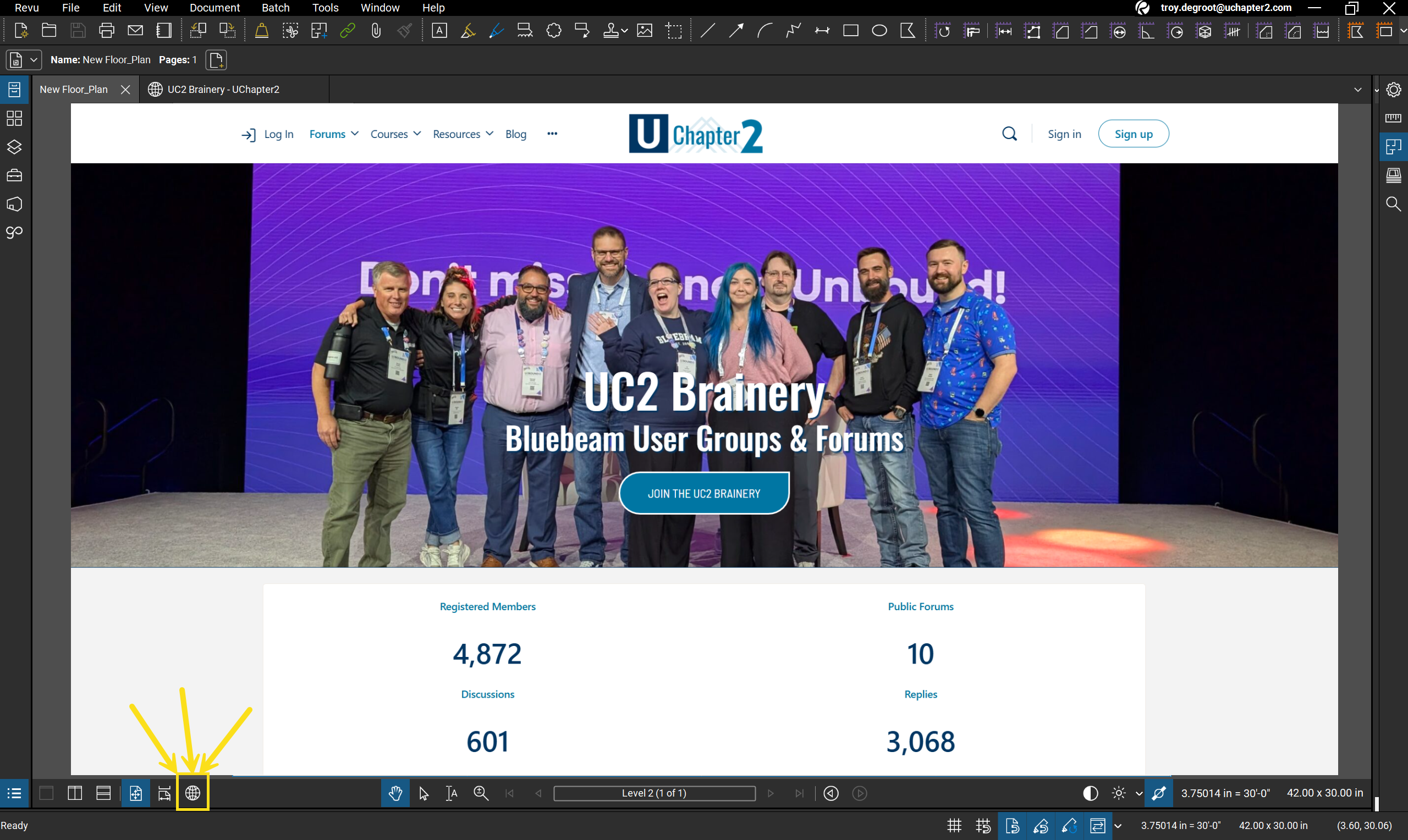
If this is new to you, here’s what just happened. Bluebeam has a built-in web browser. You’ve now set its home page, and you can access it in the Window Menu at the top by selecting WebTab.
We’re halfway there. Let’s make it even easier by creating a button to get you there.
Step 2: Add the Web Tab Button to Your Toolbar
Next, go to:
Tools > Toolbar > Customize
In the Customize Toolbar window:
Step A: On the left side:
- Find the Commands dropdown
- Select View
Step B: Scroll down the Commands list on the left and select WebTab
Step C: On the right side:
-
Under Toolbar, select Navigation Bar Left
Now you’ll see:
- View Commands on the bottom left
- Toolbar items on the bottom right
Step D: With the WebTab command selected on the left, click the arrow button in the middle to move WebTab to the right side. You may have to scroll down to the bottom of the items to see it.
Click OK
You’re done.
Verify: Meet Your New Help Button
Look at the bottom of your Bluebeam interface. You’ll see a small globe icon. That globe is now your help button. Anytime you have a question about:
- Functionality
- Workflows
- Best practices
- Troubleshooting
- Or how others are solving the same challenge
Click the globe.
You now have instant access to a global knowledge base, without ever leaving Revu.
Why would I do this?
Most Bluebeam users don’t struggle because the software lacks capability. They struggle because specific answers aren’t always easy to find in the moment. This removes that friction. Instead of stopping your workflow to search the web, you’ve brought the answers directly into your workspace. It becomes part of how you work. Not a separate task. This button drives you straight to the community experts and resources you need to keep moving. Have a unique issue? This is the place to crowdsource a solution.
What You’ll Find Inside
The Brainery Community connects you with professionals across the construction industry, and around the world who are:
- Sharing real-world workflows
- Answering questions
- Exploring new features
- Brainstorming better ways to work
You can also use the search bar to find:
Everything you could possibly need in one place. (even paid training if you’re interested)
The Bigger Lesson, Bluebeam Interface Customization
This exercise wasn’t just about creating a help button. You also learned something more important. You learned how to add tools to your interface. This is where Bluebeam starts to become personal. When your tools match your workflow, everything becomes faster, smoother, and more predictable. And often, it starts with one small change.
This is one of the simplest examples of Bluebeam toolbar customization, and it shows how small changes to your environment can make a big impact. Learning how to customize Bluebeam allows you to build an interface that supports your workflow instead of slowing it down. These types of Bluebeam workflow tips and user interface customization techniques are what transform Bluebeam from a PDF viewer into a true productivity tool.
Are you looking to learn from other industry experts? We have several live webinars coming up. Get Registered on the UChapter2 Events Page.
Interested in learning more about UChapter2 training and services? Contact Us.
Responses