

Bluebeam for Structural Engineers: Fixing the Review Loop That Was Costing Me Revision Time

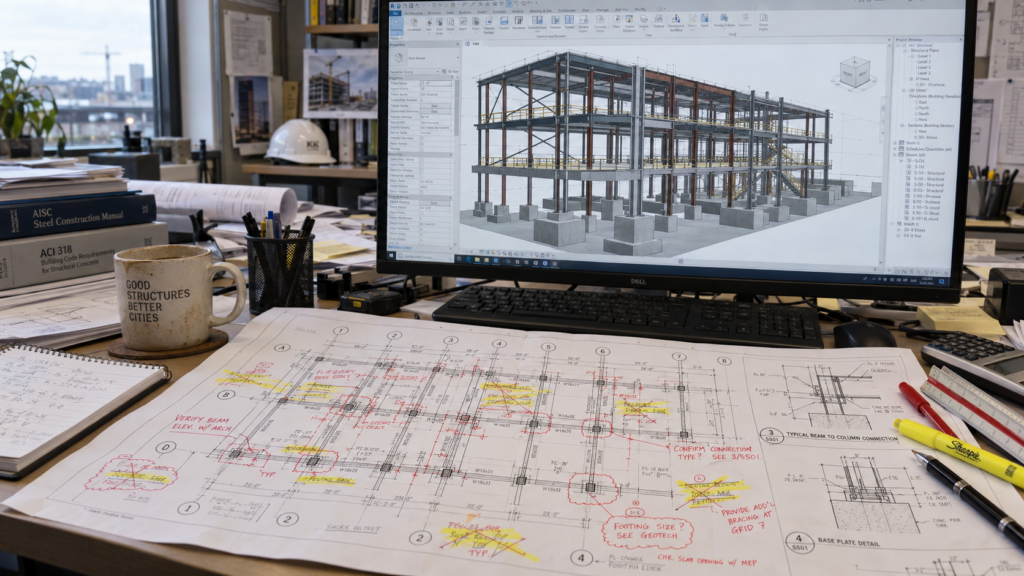
I spent years early in my career as a structural designer, building the models and producing drawings before I ever sat in front of a classroom. On most projects, the review process worked like this: the Engineer in Training did the calculations and marked up column and beam sizes on a printed set. The two of us worked together on section cuts and connection details. Then the Engineer of Record took the whole package and checked it against their own standard before signing it and issuing it for construction.
Every one of those markups happened on paper, with a highlighter and a colored pen. The EIT marked up a printed sheet and handed it back. The EOR did the same. By the time both sets of redlines made it back to my desk, I often had very little time left to actually update the model before the drawings were due.
That review loop was where the real time pressure lived. But that loop wasn’t the only place Bluebeam would’ve earned its keep. The work actually started long before there was anything to redline, and it didn’t end once the drawings were issued either.
Starting the Layout Before There Is Anything to Redline
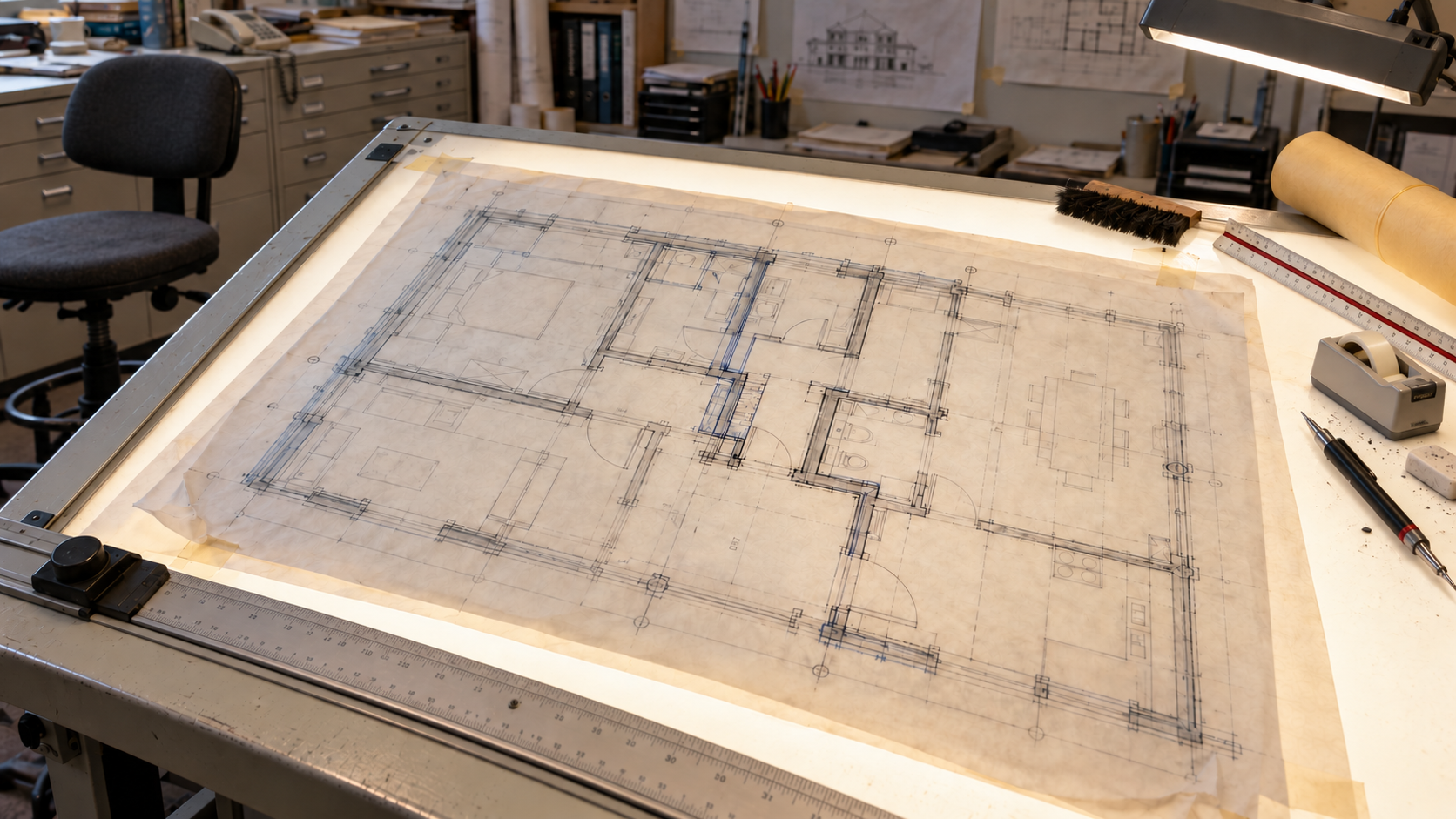
Long before a review set existed, an earlier conversation decided how much revision work the project would generate downstream. Very early in schematic design, before the structural system was locked in, the EOR and I would sit down with the architect’s schematic floor plans and sketch out the most economical column and beam framing layout we could fit inside their design intent. We’d lay bum-wad, the thin trace paper that let us see the architect’s plan underneath while we sketched on top of it, moving a column line a few feet to land on a bay spacing that didn’t fight the framing, and looking for bearing walls and joist span directions.
That early back-and-forth is exactly the kind of fast, low-stakes markup conversation Bluebeam is built for. The architect’s schematic plan gets marked up directly, laying out building grids and column locations sketched right on top of it, and sent back the same day instead of waiting on a formal CAD redline. The faster that conversation happens, the fewer expensive revisions happen later once real drawings are being produced. With MarkupX you can actually import that layout directly into Revit and convert the markups into column, beam, and joist families, speeding up the model creation.
The Review Loop That Ate My Revision Time
Nobody in that chain was doing anything wrong. The EIT’s design obviously had to be communicated to the designer. The EOR’s standard exists for a reason. The bottleneck was structural, not human: a markup had to be drawn by hand, physically returned, and only then could I start updating the model. Two reviewers working simultaneously, each one blind to the other’s printed sheet, meant the clock ran out before the model ever caught up. The hours stacked up.
If a markup needs to travel by hand from one desk to another before anyone can act on it, the communication itself becomes the schedule risk, no matter how good the team members are behind it.
What Studio Sessions Would Have Changed
Here’s where I think about that process differently now. If that same review had run through a Bluebeam Studio Session, the EIT and the EOR could’ve marked up the same live file instead of two separate printed sets. Each of them works in their own color, on the same sheet, at the same time. If the EIT sized a beam one way and the EOR wanted it sized differently, that gets resolved in the session itself, not discovered later when two sets of paper markups don’t agree.
And I wouldn’t have been waiting on a printed sheet to come back before I could start working. The moment either of them placed a markup, I could see it and start updating the model right then. The review and the revision stop being two sequential steps separated by a trip across the office, or across town, and start happening at the same time. Oftentimes, the engineers would complete the redlines and head home for the night. That would bring another challenge of deciphering conflicts when they were not available to answer questions.
This isn’t a theoretical efficiency gain. It’s the literal difference between updating a model the moment a decision gets made and updating it after that decision has been drawn by hand, physically delivered, and finally reached my desk.
Part of the paper workflow was using highlighters to communicate completeness. When a redline was applied to the model, a yellow highlighter would scribble out the paper redline indicating it was done. When the engineer backchecked against the updated print, a green highlighter scribbled over it would indicate it was done correctly. This system can easily be mimicked using Statuses in Bluebeam with custom colors. Once I finish a markup, I change the status to Completed, and it turns yellow. It also registers in the markups list with my name and the date and time I marked it completed. Then the engineer can change the status to Approved, and it will turn green with their name noted. If they set the status to Rejected, it can turn hot pink to draw attention to it on the drawing. The designer can even filter the markups list to only show the rejected status to get right to the necessary updates. If things are repeatedly getting rejected, it’s a training opportunity.
Let me toss in a tip while we’re here: Custom Statuses need to be imported into the PDFs before you upload them to the Studio Session; they cannot be added afterwards.
A third benefit to digital reviews is the elimination of archiving stacks upon stacks of rolled-up redlines to hang onto for seven years, just in case. I spent days as an intern organizing garage shelves full of drawings. I’ve heard of large cities that have offsite storage for old plan reviews the size of Costco, three stories high.
When the Changes Come From Outside the Office
Not every revision starts internally. Plenty of them come from the architect or feedback from the contractor. Every time the architect issued a revision, we had to go back through our own structural set and update it to match whatever changed on theirs: column locations, opening sizes, a wall that moved six inches. Many times these updates were difficult to find. When working with parametric models, a change on the plan can result in a domino of changes on several sheets of sections and details. Oftentimes, the plan update would be clouded and marked as a revision, but not all the subsequent pages.
This is where Document Compare and Overlay Pages split the work, and they’re doing two different jobs. Document Compare is how you find where the changes are. Run it across a full revision set, and it clouds every line, symbol, or text that changed, even if the architect never clouded their own revision, so you’re not scanning sheet by sheet hoping you don’t miss the one that matters. Overlay Pages is how you see what changed. Once you know which sheets have clouded changes, stacking the new version directly against the last one you coordinated against shows you exactly what shifted, almost like the light tables we used to overlay drawings on by hand, except now you’re doing it on screen. Find where first, then see what.
Let me drop another tip here. When you run Document Compare and Overlay Pages, you get two separate, new pdf’s. If you select all the clouds on the Document Compare sheet and type Ctrl+C, it will copy them all to your clipboard. Then open the Overlay PDF and type Ctrl+Shift+V to paste the clouds in the exact place they were copied from on the page. This will place both the where and the what on top of each other on one sheet.
If your office runs Bluebeam MAX, there’s another layer worth knowing about: you can overlay your Bluebeam markups directly onto the Revit model itself, so a change isn’t just something you’re reading off a PDF; you’re seeing it against the model you’re actually building from. MarkupX, which I mentioned previously, also does this, allowing you to change the status directly in Revit.
This workflow matters because the risk was never the changes you could see. It was the change nobody thought to cloud.
Site Visits Needed Their Own Paper Trail
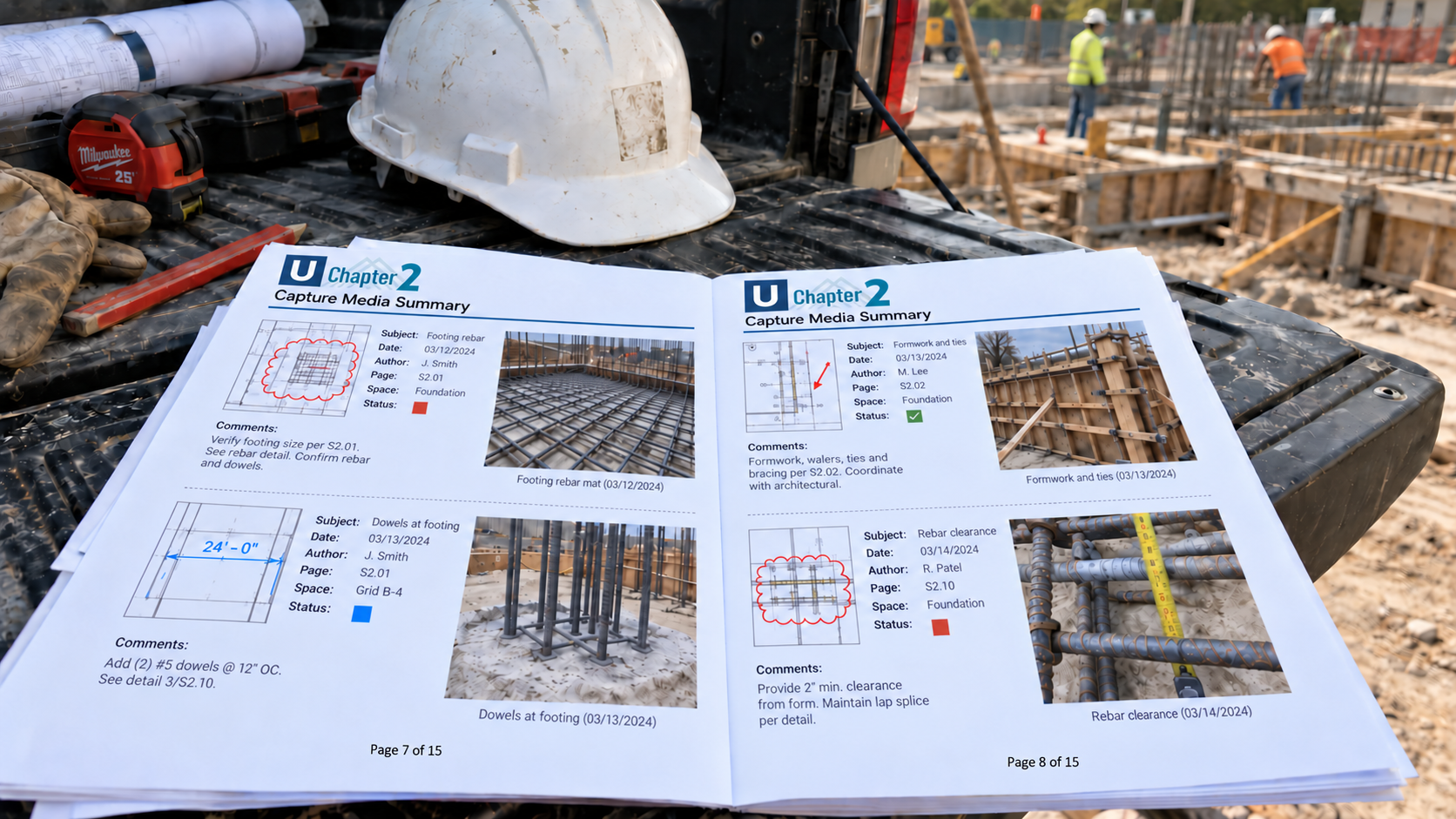
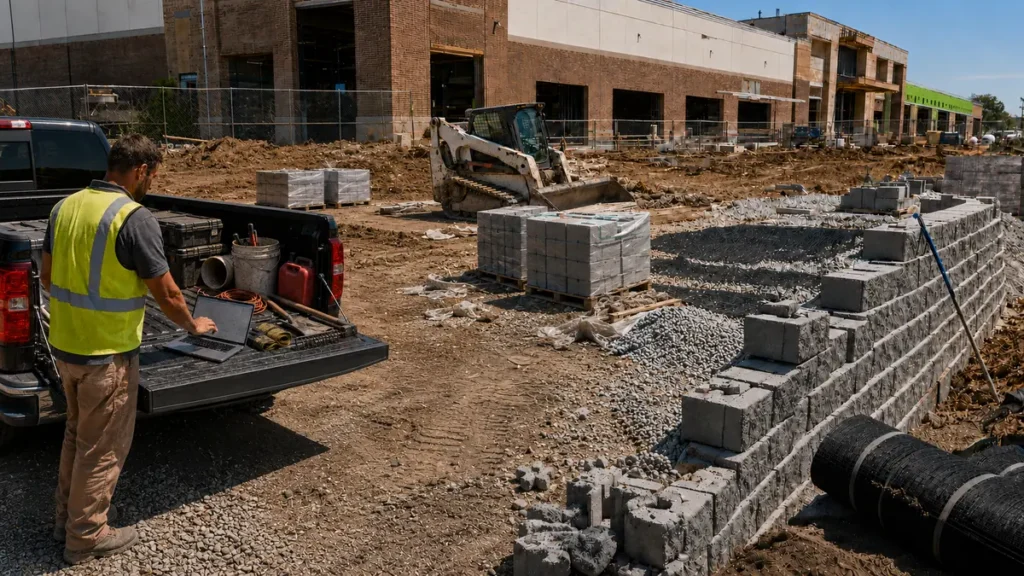
Later in a project, once construction actually started, there were site inspections: confirming work matched the drawings, checking formwork and rebar before a pour, verifying connections as steel went up. Every one of those visits generated its own paperwork. Field notes, photos, and possibly a list of corrections. All of it had to get turned into an organized report the contractor and the EOR could both act on.
Bluebeam handles that whole loop inside the same file you’re already working in. You can attach a site photo directly to the markup it belongs to and generate a summary report that pulls every markup and every attached photo into one document. Once that’s set up, the markup you made standing in front of the issue becomes the report instead of something typed up that evening from memory. You can even add markups directly to the picture.
Try This: Line Up Two Revisions With Overlay Pages
If you take one thing from this post, make it this. Overlay Pages is the light table without the light table, and it works the same whether you’re checking a structural revision, an updated architectural background, or coordinating a mechanical plan against a structural plan for clash detection. Here’s how to run one in Revu 21.
- Open the revised drawing in Revu and go to Document > Overlay Pages.
- Select Add Files and add the original and the revision. Add Open Files grabs everything you already have open.
- Leave the layer colors Revu assigns. They’re chosen so changes stand out. If you have trouble seeing either of these colors, simply click on it and pick a different one.
- To limit it to certain sheets, choose Edit Layer and set Pages to Current or a Custom range like 1-3, 5. Be careful here: if a sheet was added to one set, it will offset every sheet after it in the set.
- Pick an alignment: Page Align stacks the sheets as they are, Auto Align finds matching points for you, and Manual Align lets you pick three points in the same order on each drawing. You may have to use different methods for different sheets depending on results.
- Select OK.
Anything that didn’t change blends into one drawing. Anything that did shows up in its layer’s color, right where you’d have seen daylight on the old light table.
Tool Sets Still Matter, Just Not for the Reason You Might Think
I still believe in building custom tool sets for structural work, but not primarily as a way to standardize symbols across reviewers. Where I’ve seen them earn their keep is sketching details quickly and communicating constructability to the people building from the drawings, the same way a tool set speeds up an early schematic framing sketch or a field markup during a site visit. A tool set built around the connection types and details you actually draw, over and over, means a section cut or a detail sketch takes a fraction of the time it would starting from a blank markup, and it reads the same way every time someone on the project looks at it.
Where to Start If Your Review Process Still Looks Like This
You don’t have to change everything at once. Take the review cycle that’s costing you the most time right now, often the one with the most reviewers touching the same set in sequence, and run the next round through a Studio Session instead of printed redlines. Separately, the next time a revision comes in from outside your office, run Document Compare first to find what moved, then Overlay Pages to see exactly how.
This is exactly the kind of implementation work I do with structural teams directly: setting up the Studio Session workflow so it matches how your office actually reviews a set, building the Document Compare and Overlay process for coordinating with outside consultants, setting up a site inspection and summary report workflow your field staff will actually use, and putting together the tool sets your team needs for schematic sketches, details, and constructability. If your process still depends on printed markups finding their way back to the right desk, I’d love to show you what it looks like when it doesn’t have to.
See how UC2 approaches structural workflow consulting.
FAQ
What’s the actual difference between Document Compare and Overlay Pages?
Document Compare finds where the changes are. Run it across a revision set, and it clouds every page that actually changed, whether the architect clouded it themselves or not. Overlay Pages shows you what changed on a specific sheet by stacking the old and new versions so you can see exactly what moved. You generally want Document Compare first to know where to look, then Overlay Pages to see it clearly.
Can more than two reviewers mark up the same Studio Session at once?
Yes. Each reviewer works in their own color on the same live file, so a third or fourth set of eyes, a peer reviewer, a second EOR, doesn’t add another sequential round trip to the process.
Is Bluebeam useful before there is even a drawing set, like during schematic design?
Yes. Marking up the architect’s early schematic plans directly, sketching a column grid or framing layout on top of their intent, is one of the fastest ways to catch an expensive structural conflict before it ever becomes a formal drawing.
Does Bluebeam help with site inspections, or is it mainly an office tool?
It covers both. A site photo attaches directly to the markup on the relevant sheet, and a summary report pulling in every markup and photo can be generated from that same file, so a field observation turns into a distributable report the same day instead of a separate write-up later.
Do we still need custom tool sets if we start using Studio Sessions?
Yes, they solve different problems. Studio Sessions fix the back-and-forth of review. Tool sets make the actual markups, sketching a detail, calling out a connection, faster and more consistent whether you’re in a session, at a schematic meeting, or out on site.
Responses