

Bluebeam for Low-Voltage Contractors: The Device Count Workflow That Survives Addenda

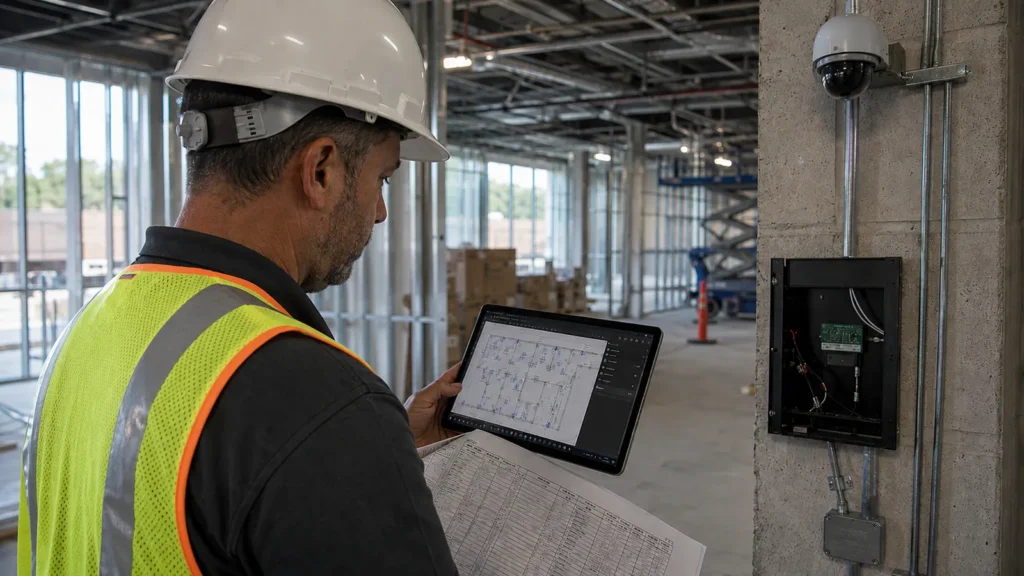
You get the low-voltage set on a Friday afternoon. Forty-two sheets, a legend buried on E0.2 with eleven different device symbols that all look like slight variations on a circle, and a bid due Monday morning. You start clicking through floor plans, counting cameras, card readers, and wireless access points one at a time, tick marks piling up on a legal pad next to your keyboard.
Then Addendum 2 lands Sunday night. Six devices added to the west wing, two relocated, one camera type swapped from fixed to PTZ. Your legal pad is now wrong, and you don’t know exactly where.
I’ve built takeoff and estimating tool sets for contractors across nearly every trade, and the low-voltage and security teams have a version of this problem that’s genuinely harder than most. A concrete contractor counts several things, but generally they are looking for volume. A low-voltage estimator is counting cameras, access points, speakers, card readers, door contacts, motion sensors, and data drops, often eight or ten device types on the same sheet, each one needing its own backbox size, mounting height, and home run destination tracked separately. When an addendum touches even a handful of those, a manual count doesn’t just need updating. It needs to be trusted again from scratch, and that’s the part that actually costs you time.
The Real Problem Isn’t Counting. It’s Trusting the Count.
Most low-voltage estimators I’ve talked to already know Bluebeam has a Count tool. What they haven’t built is a system where the count survives a revision.
It shows up between people, too, not just between revisions. Put two estimators on the same set with generic Count tools, and you’ll usually get two different counts, not because either one is careless, but because there’s no shared standard for what gets tagged as what. One person’s “camera” tag isn’t necessarily the next person’s. A system that survives an addendum also needs to survive a second set of eyes.
Here’s the distinction that matters: if you’re using one generic Count markup and manually labeling each click, you’re doing digital tally marks. You’ve traded a legal pad for a mouse, but you haven’t actually built anything that scales or holds up under an addendum. The workflow that survives an Addendum needs three things in place before you ever start clicking: a dedicated Tool Set built for your device types, a Legend tied to that Tool Set, and custom columns that carry the data you actually need downstream.
Building the Tool Set Once
This is where the time investment pays for itself on the second project, not the fifth. Instead of one generic Count tool, you build a custom Tool Set with a distinct, color-coded symbol for every device type you regularly bid: fixed cameras, PTZ cameras, card readers, door contacts, motion sensors, wireless access points, speakers, and data drops at minimum. Each tool gets its own subject, so when you export later, “Camera – Fixed” and “Camera – PTZ” show up as two separate, sortable line items instead of one lump count you have to manually split by eye. If data drops are most of your scope, I walked through a closet-by-closet version of this workflow for telecom and structured cabling contractors.
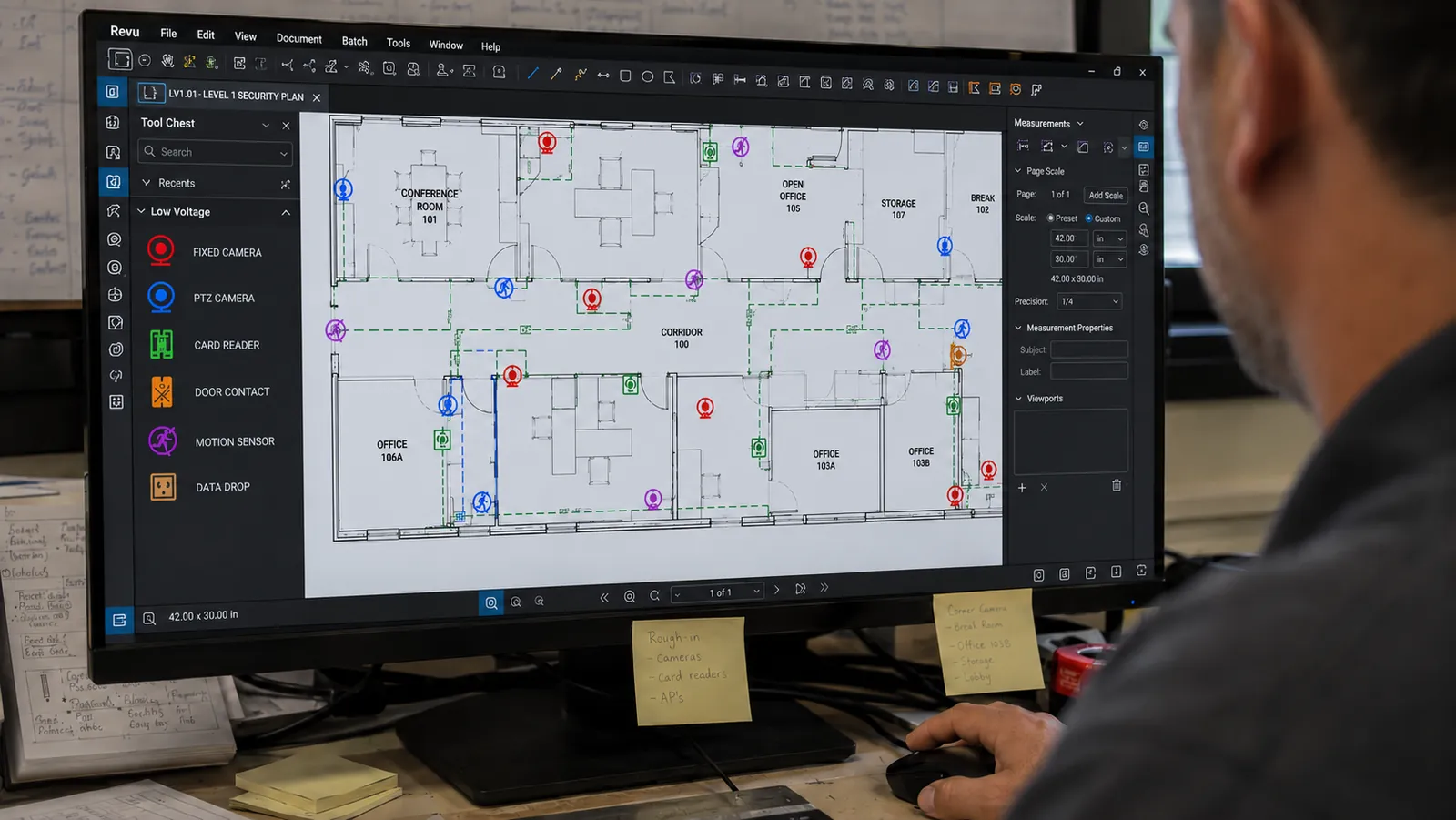
Save that Tool Set to your profile once, and it travels with you to every set you open from that point forward. This is the same principle behind every custom Tool Set I’ve built for a contractor, whether it’s a concrete company tracking pour sequences or a fire protection outfit tracking sprinkler heads. Build the vocabulary once, in your tools, and every project after that starts from a working system instead of a blank Count tool.
An intern using that Tool Set gets the same result a senior estimator would get by hand, because the standards, which backbox for which device, which mounting height, which naming convention, are already built into the tools themselves instead of locked in one person’s head. That’s the real case for building it specifically for your device vocabulary instead of pulling a generic template: if it’s made for everybody, it’s made for nobody. A Tool Set built around how your team actually works is one your whole team can use the same way, every time.
If you’d rather start from a pre-built option than build your device Tool Set from scratch, my partner SimpleTech makes solid electrical and low-voltage tool sets for Bluebeam Revu, including fire alarm symbols, rough-in boxes, and strut for racks and supports. You can see their tools here. Use code 8ZPLQYCOTL for 10% off at checkout. Keep in mind they’re visual tools. They’re a good starting point, but carrying real device data through a workflow like this one takes custom columns, a device vocabulary that matches your team, and a Legend setup built around how you bid. That’s exactly the kind of build I do. (Quick disclosure: that’s a referral link; I earn a small commission if you buy through it.)
The Legend Does the Work an Addendum Actually Requires
Once your Tool Set exists, the Legend becomes the thing that saves you on a Sunday night addendum. A properly configured Legend in Bluebeam ties directly to your markup subjects and pulls a live count as you click, broken out by device type, right there on the page. When Addendum 2 adds six devices to the west wing, you’re not recounting the whole sheet. You isolate the west wing, add the new markups with the correct existing tools, and the Legend updates the running total for you. The count you had Friday and the count you have Sunday night are the same system, just with six more entries in it, not two separate tallies you’re trying to reconcile by memory.
Custom columns extend this further. Beyond the device type itself, I set contractors up to track mounting height, backbox size, and home run destination as custom columns tied to each markup. That’s information an installer needs in the field, and a PM needs for submittals, captured at the estimating stage instead of re-derived later from a different document.
Linking the Floor Plan to Everything Else in the Set
Every device on a low-voltage floor plan connects to something else documented elsewhere in the set: a home run back to a panel schedule, an IDF closet callout, a spec sheet reference. Most estimators cross-reference that connection by squinting at two separate PDF tabs and matching device numbers by hand. Bluebeam’s Hyperlink tool solves the lookup itself: link a floor plan device markup to wherever it’s documented elsewhere in the set, and a PM or installer can click the device on the plan and land exactly where it’s referenced, without hunting. On a project with multiple documentation points feeding different zones, that link is the difference between a five-second lookup and a five-minute one, repeated dozens of times across a project. Studio Session solves a related but separate problem: it puts the whole field team into that same linked, up-to-date drawing set live, instead of everyone working off their own static PDF export that’s already a revision behind.
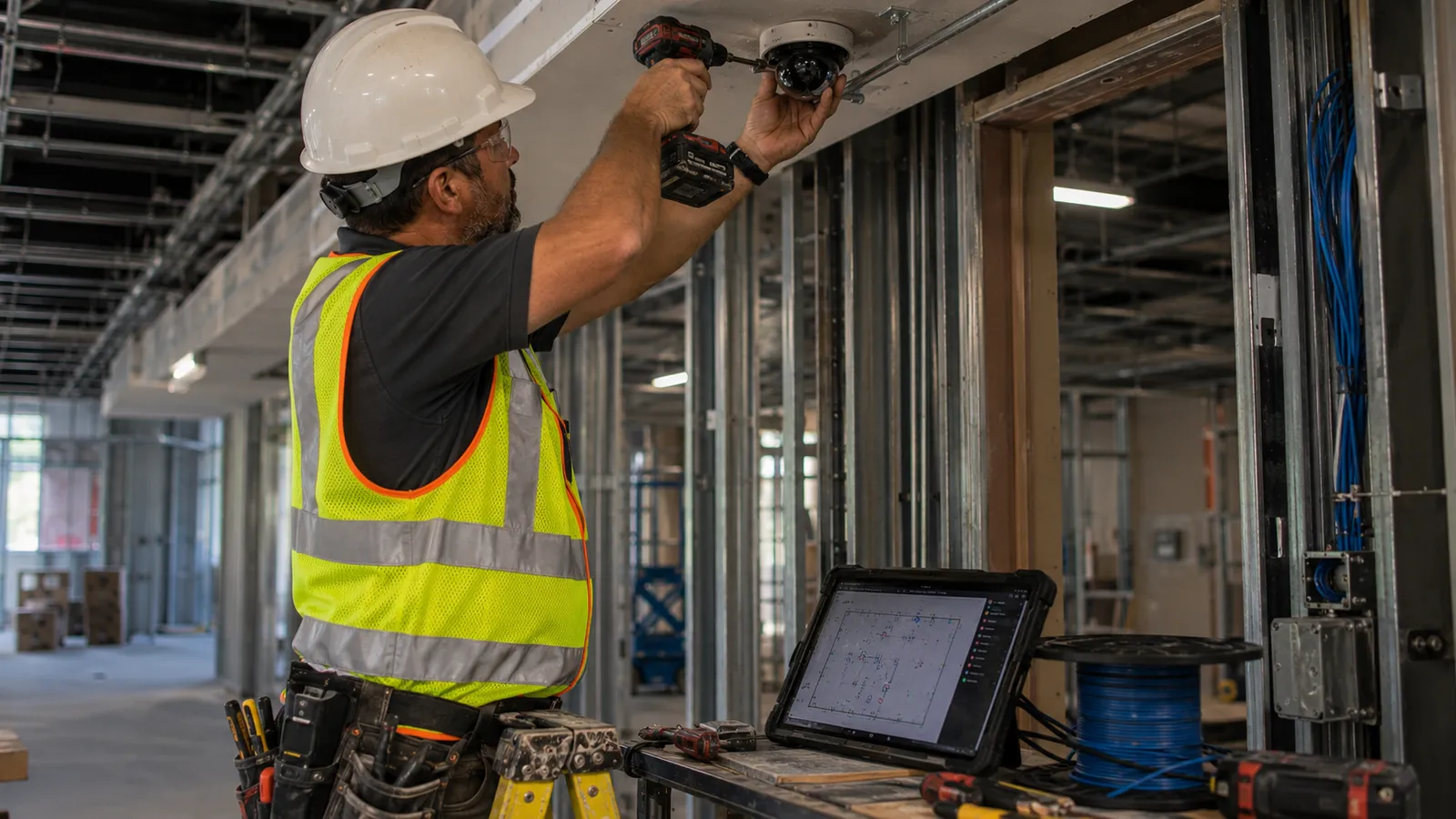
Cable and conduit runs get the same treatment with the PolyLength tool rather than a straight-line measurement. Cable tray and conduit rarely run point to point. A PolyLength takeoff that follows the actual routed path, tray up a wall, across a ceiling grid, down into a closet, gives you a real linear footage number instead of an optimistic straight line that undercounts material on every bid.
Getting the Count Out of Bluebeam and Into a Bid
None of this matters if the data stays trapped in the PDF. The Markups List, once it’s built on custom subjects and custom columns, exports directly to Excel. That export becomes your material list, your labor estimate input, and your submittal log in one move, sorted by device type with mounting height and backbox size already attached. Estimators who build this once stop re-typing counts into a separate spreadsheet by hand, which is usually where a data entry error creeps into a bid that otherwise would have been accurate.
Document Compare closes the loop on addenda specifically. Rather than eyeballing two PDF revisions side by side to find what changed, Document Compare flags the differences directly, so you know exactly which sheets moved before you touch a single markup. Paired with a Tool Set and Legend that were already built correctly, an addendum stops being a full recount and becomes a targeted update to a system that was already trustworthy.
Try This: Build a Legend From Your Tool Set
If you take one thing from this post, make it this. A Legend turns your Tool Set into a live count right on the sheet, and it works the same whether you’re counting cameras, card readers, sprinkler heads, or light fixtures. Here’s how to build one in Revu 21.
- Open the Tool Chest (Window > Panels > Tool Chest, or Alt+X).
- Find the Tool Set that holds your device tools and select the gear icon next to its name.
- Choose Legend > Create New Legend.
- Click anywhere on the drawing to place it.
- With the Legend selected, open Properties (Window > Panels > Properties) and use Edit Columns to choose what shows, including Quantity, Subject, Label, or any Custom Columns.
- Set Source Pages to All Pages if the count spans the whole set, a Custom range like 1-3, 5, or I recommend Current Page. You can only have data in one Legend; if you pick Current Page and then add another one with All Pages, the first one will empty. This eliminates counts in two places, causing errors.
- Adjust the title, font, and colors, and style to match your sheet standards.
Add a device, delete one, or let an addendum move three of them. The Legend keeps up on its own. That’s a count you can trust.
A Legend is only as good as the tools feeding it. If you’re still building those, here’s how to turn any markup into a reusable tool.
The Workflow, Not the Software
None of this requires a Bluebeam feature that’s hard to find. Count, Legends, custom columns, PolyLength, Document Compare: all of it ships in Revu. What’s missing for most low-voltage and security contractors isn’t access to the tools. It’s a Tool Set built specifically for their device vocabulary, a Legend configured to track it, and a habit of pulling the Markups List into Excel instead of retyping numbers from memory. That’s the gap between a contractor who dreads an addendum landing on a Sunday night and one who treats it as a twenty-minute update.
If your team is still counting devices with a generic Count tool and a legal pad backup plan, that’s not a training gap. It’s a Tool Set that hasn’t been built yet. See how UC2 approaches custom workflow builds.
Related reading: Bluebeam Workflows Built for MEP Contractors and Bluebeam for Landscape Contractors.
Frequently Asked Questions
Does this only work for security and access control, or does it cover full low-voltage scopes like structured cabling too?
The same Tool Set and Legend approach covers any device-based low-voltage scope: security, access control, structured cabling, AV, and nurse call. The specific symbols change, but the underlying system (custom Tool Set, tied Legend, custom columns, Markups List export) is the same regardless of which device types you’re counting.
Can multiple estimators on my team share the same Tool Set and get consistent counts?
Yes, and this is usually where the real return shows up. A shared Tool Set and Profile means every estimator on your team is using the same symbols, the same subjects, and the same columns, so a count from one estimator matches the format and quality of a count from another. Without that standardization, every estimator is quietly building their own private system, which makes bids inconsistent and makes it hard for a second person to check anyone’s work.
Does Document Compare actually catch device count changes in an addendum, or just drawing revisions in general?
Document Compare flags differences between two PDF revisions at the page level, which includes added, moved, or removed device symbols along with any other markup or drawing changes. It won’t automatically re-tally your count for you, but it tells you precisely which sheets changed so you’re not re-scanning an entire 40-sheet set to find six new cameras.
Responses